BATCH WORKFLOW
From import to output: how one batch is handled
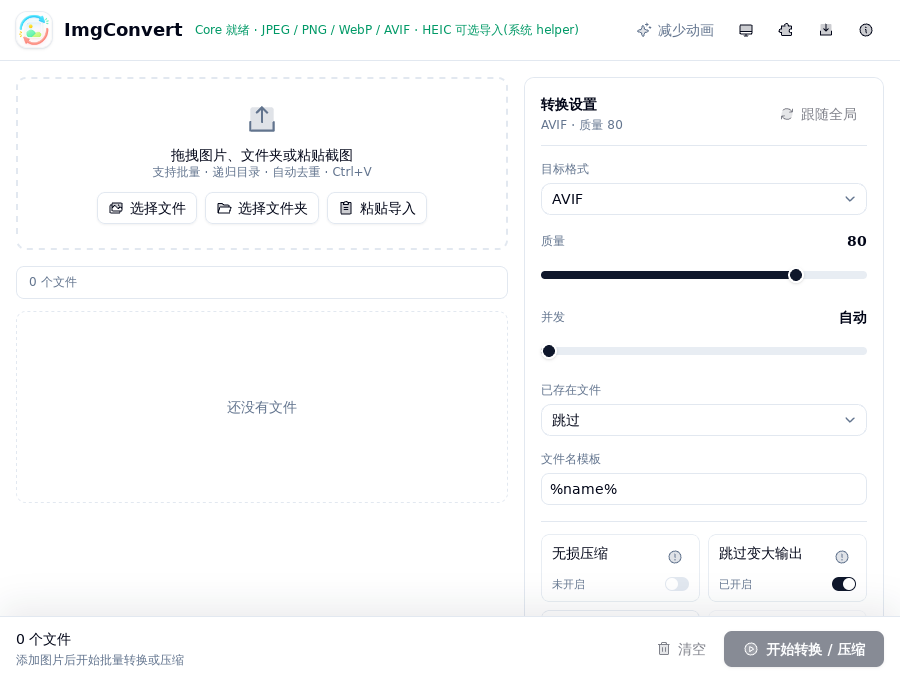
The task queue keeps import, output format, compression settings, progress, and results in one desktop workspace. Handle one batch consistently while retaining a path for individual exceptions.
Key points
- Files, folders, and intentionally pasted clipboard images can join one task queue.
- Scenario presets, batch resize, target size, and privacy metadata rules can be reused across the batch.
- Exact comparison, progress, cancellation, and output remain visible in the local workspace.
1. Import inputs you intentionally choose
Choose files, a folder, or intentional clipboard import. They join one task queue so a group of images can share an output strategy.
The app does not scan photo libraries, disks, or network locations in the background. The input scope comes from your choice.
2. Choose a reusable workflow, then handle exceptions
Start with Web sharing, Email attachment, High-quality archive, or Private sharing, or customize an aspect-preserving resize rule, JPEG/WebP target size, and metadata-retention profile.
Use the exact before/after comparison to review final dimensions, estimated size, and warnings. An individual image can still override its delivery format without rebuilding the batch.
3. Choose the output directory and review results
Confirm a writable output directory and start processing. Progress, cancellation, and output results remain visible in the same local workspace.
Enable Skip larger outputs when you want to avoid writing a candidate that is not smaller than the source. It does not promise every image will shrink.
Common questions
Can I import a folder directly?
Yes. A folder you intentionally select can join the task queue for batch work.
Can one image use a format different from the global setting?
Yes. Override an individual image's output format without rebuilding the whole task.
Can an active task be cancelled?
Yes. Progress and cancellation are available in the same local workspace.